 Vellm
VellmHow to choose a reference photo for AI video
By Vellm ·
Choose the photo that clearly shows the parts of the subject your video needs. A full-body dog dance needs a view of the body and paws. A portrait reaction needs a clear face. The most flattering photo is not always the most useful input.
Open your photo at full size before uploading. Check that the eyes are in focus, distinctive features are recognizable, and there is sufficient background room to support the framing you want.
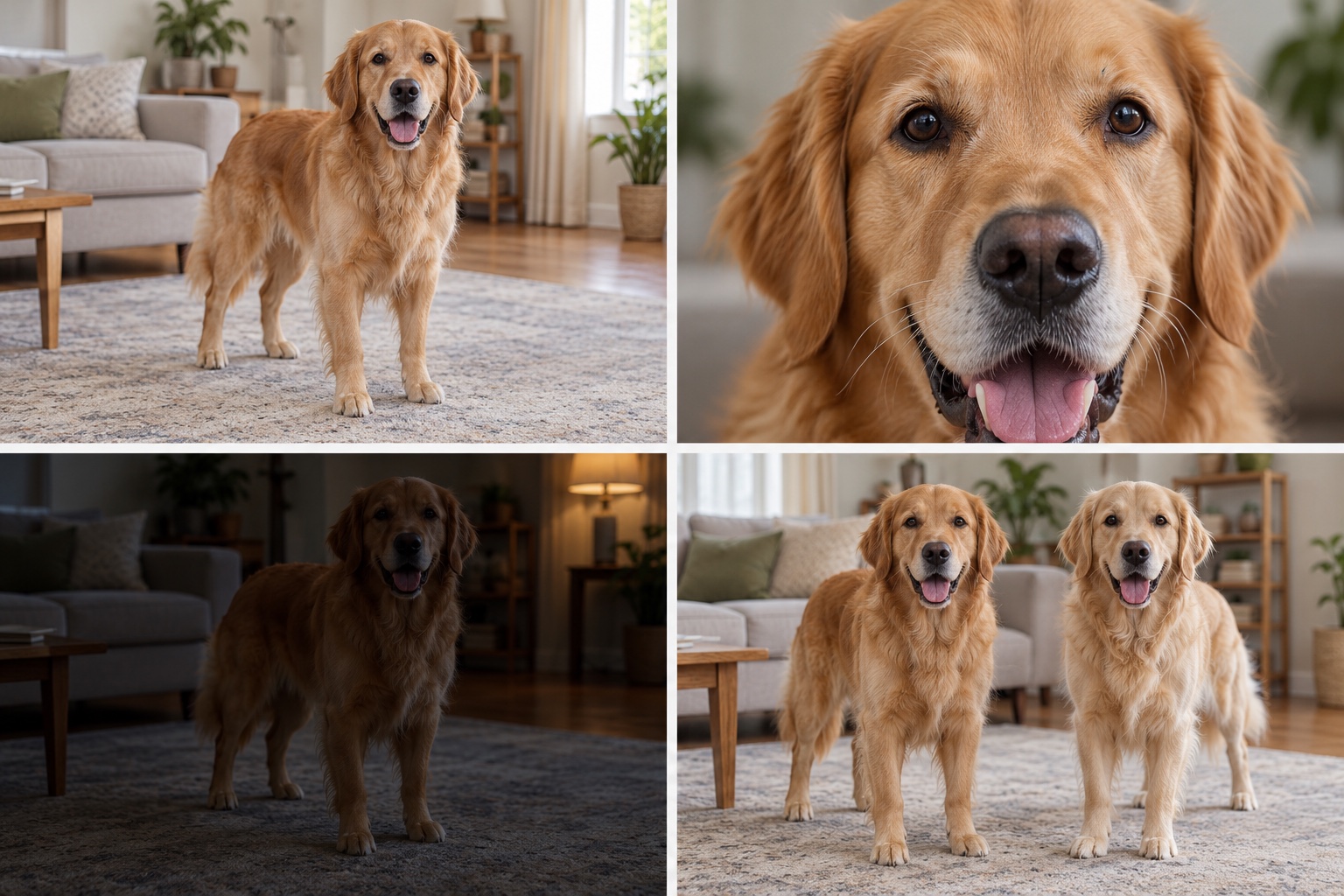
AI-generated teaching illustration. These pictures show input-selection problems; they are not a Vellm generation test or a before-and-after comparison.
Match the photo to its role
An image can serve different purposes in a video workflow.
In Animate a photo, it supplies the starting frame, including the composition and surroundings. In Remake a video, the photo identifies the person, pet or character you want to place into the clip. In Mix references, you explain which file supplies which part of the idea, subject to the selected model's capabilities.
A template has its own photo slots. Read their labels before uploading. The first photo might identify the lead performer, and another might identify a partner. Two slots do not automatically mean "upload two angles of the same subject."
For pets, check the ears and paws
For a full-body dance, use a single pet with its face, ears, body and paws visible. Pick a normal standing or sitting pose that the template accepts. Keep some room around the animal rather than cropping tightly against its outline.
Avoid a blanket hiding the legs, a hand covering the chest or a filter changing the face. If two similar dogs fill the photo, the model has an ambiguous subject. Take a separate picture of the pet you want.
For long-haired pets, look closely at whether the legs can be distinguished from the floor and surrounding fur. Better lighting or a simpler background may make the shape easier to read. You do not need to make the pet perform the dance in real life.
The dog dance guide compares routines that take one dog photo with group templates that accept several separate pet photos.
For people, match the crop to the action
A clear face and upper body can suit a portrait-led template such as Bulin 47. A full-body action needs more of the person visible. Use the requirements on the chosen page rather than assuming every workflow accepts the same crop.
Choose even light where the face is readable. A strong shadow, sunglasses or a hand covering the mouth leaves less facial information available. Heavy beauty filters can also remove the details you want the video to preserve.
Use your own photos or photos you have permission to use. For videos featuring people, follow the service's consent and age requirements.
Keep the files consistent
When several photos identify the same subject in a workflow that supports multiple references, choose images that agree about the appearance you want. Different haircuts, outfits or illustration styles leave the model to reconcile those differences.
When the photos identify different roles, keep each role separate. For Hotel Lobby cat duo, the first photo identifies the rapper on the left and the second identifies the hype pet on the right. Check that order before generation. Reversing the uploads changes the intended casting.
Each reference file needs a clear role. Start with the files the task needs, then add another when it supplies useful information the selected model can use.
In Create, use the labels on the file cards to name those roles in your description. For example, "Use the pet in @Image1 and the setting in @Image2." With a movement reference, you could write, "Use the pet in @Image1 and follow the movement in @Video1." Add the files first, then type @ in the description and choose from the suggestions. Images and videos have separate numbering; check the labels again if you remove a file.
The prompt guide explains how to insert @ references, with a complete photo-and-video example. Template pages use their named upload slots to assign roles; these Create labels are for the custom description workflow.
Crop carefully before you upload
Remove irrelevant people and large empty borders when they distract from the intended subject. Keep the parts needed for the action. For a full-body dance, cropping out a busy ceiling may help; cropping out the feet removes useful information.
For Animate a photo, choose an image whose proportions and composition already suit the clip. Some models inherit the image's aspect ratio, while others offer format controls. Check the selected model before assuming that choosing 9:16 will rebuild a wide photo exactly as you imagined.
Use the original image file when possible. A tiny screenshot or repeatedly compressed copy may have lost detail. Enlarging its dimensions does not restore an exact face or paw that was never visible.
Fix the input before buying another attempt
If the first frame already looks wrong, inspect the photo and the role mapping. If the subject starts clearly but changes during motion, simplify the movement or choose a different routine. A still image that looks good does not guarantee that every fast turn will preserve the same details.
Compare two candidate photos by asking which one gives the model the clearer task. Save the chosen file with your prompt and settings so you can make a useful comparison on the next attempt. You can begin in Create or use the photo requirements on a ready-made template.